This guide assumes Powershell 5.1 or 7+ and that you have at least one Powershell project you'd like to keep tidy. Pairs naturally with the Pester post for a CI quality bar.
PSScriptAnalyzer is the linter every Powershell team should use and most don't. It catches the bugs you're tired of finding in code review (+= to arrays, Invoke-Expression, missing [CmdletBinding()], deprecated cmdlets) and gives you a place to encode the team-specific conventions that don't fit anywhere else.
Install and Run
Install-Module PSScriptAnalyzer -Scope CurrentUser -Force

Invoke-ScriptAnalyzer -Path . -Recurse
You'll see results like:
RuleName                   Severity  ScriptName     Line Message
--------                   --------  ----------     ---- -------
PSAvoidUsingPositionalParameters Warning  build.ps1   12 Cmdlet 'Get-ChildItem' has positional parameters.
PSUseDeclaredVarsMoreThanAssignments Warning helpers.ps1 8 Variable '$tmp' is assigned but never used.
Pick a Profile, Don't Run Everything
Out of the box PSScriptAnalyzer ships ~70 rules. Some are debatable, some genuinely matter, a few are aesthetic. Configure a settings file once and stop fighting the defaults:
./PSScriptAnalyzerSettings.psd1:
@{
    Severity     = @('Error','Warning')
    ExcludeRules = @(
        'PSUseShouldProcessForStateChangingFunctions',  # often a false positive
        'PSAvoidUsingWriteHost'                          # we use it deliberately
    )
    IncludeRules = @('*')
    Rules = @{
        PSAvoidLongLines                  = @{ MaximumLineLength = 140 }
        PSPlaceOpenBrace                  = @{ OnSameLine = $true; NewLineAfter = $true }
        PSUseConsistentIndentation        = @{ IndentationSize = 4; Kind = 'space' }
        PSUseConsistentWhitespace         = @{ CheckOpenBrace = $true; CheckOperator = $true }
    }
}
Invoke-ScriptAnalyzer -Path . -Recurse -Settings ./PSScriptAnalyzerSettings.psd1
Commit the settings file. The rules your team agrees on are a project artifact, not a personal preference. Without it, every contributor's editor will flag different things.
Suppressing With Intent
You'll occasionally need to suppress a rule for a specific function e.g. a wrapper that intentionally uses Invoke-Expression. Do it with an attribute, not by deleting the rule globally:
function Invoke-Template
{
    [CmdletBinding()]
    [Diagnostics.CodeAnalysis.SuppressMessageAttribute(
        'PSAvoidUsingInvokeExpression', '',
        Justification = 'Template rendering is the entire point of this function'
    )]
    param
    (
        [string]
        $Template,

        [hashtable]
        $Vars
    )

    begin
    {
        Write-Verbose -Message '[Invoke-Template] Begin'
    }

    process
    {
        foreach ($k in $Vars.Keys) { Set-Variable -Name $k -Value $Vars[$k] }
        Invoke-Expression $Template
    }

    end
    {
        Write-Verbose -Message '[Invoke-Template] End'
    }
}
The Justification is mandatory in CI in any team I trust. Suppressed-with-explanation is fine; suppressed-with-no-comment is the default smell.
Severity Levels
Three: Error, Warning, Information. CI should fail on Error, log Warning, ignore Information (or escalate to warnings later).
$results = Invoke-ScriptAnalyzer -Path . -Recurse -Settings ./PSScriptAnalyzerSettings.psd1
$errors  = $results | Where-Object Severity -eq 'Error'

if ($errors.Count -gt 0)
{
    $errors | Format-Table -AutoSize
    throw "PSScriptAnalyzer found $($errors.Count) error(s)"
}

$results | Where-Object Severity -eq 'Warning' | Format-Table -AutoSize
CI Integration
A drop-in GitHub Actions step:
- shell: pwsh
  run: |
    Set-PSRepository PSGallery -InstallationPolicy Trusted
    Install-Module PSScriptAnalyzer -Force
    $r = Invoke-ScriptAnalyzer -Path . -Recurse -Settings ./PSScriptAnalyzerSettings.psd1
    $errors = $r | Where-Object Severity -eq 'Error'
    $r | ConvertTo-Json -Depth 5 | Set-Content analyzer.json
    if ($errors) { $r | Format-Table; exit 1 }
Pair this with the Pester job and your CI quality bar is roughly: "lints clean and tests pass."
Writing Your Own Rules
Built-in rules cover the language. Custom rules cover your team's conventions file headers, naming patterns, banned internal cmdlets, mandatory tagging.
A custom rule is just a function in a .psm1 file. The function:
- Takes a
ScriptBlockAst(or other AST type) parameter. - Returns one or more
[Microsoft.Windows.PowerShell.ScriptAnalyzer.Generic.DiagnosticRecord]objects. - Has a comment-based help block so PSScriptAnalyzer can describe it.
# ./CustomRules/MyOpsRules.psm1
function Measure-MyOpsBannedCmdlet
{
    <#
    .SYNOPSIS
        Bans use of legacy cmdlets that have been replaced internally.
    .DESCRIPTION
        Our team replaced Invoke-WebRequest with Invoke-MyOpsRest. Flag uses
        of the old one outside compatibility shims.
    #>
    [CmdletBinding()]
    [OutputType([Microsoft.Windows.PowerShell.ScriptAnalyzer.Generic.DiagnosticRecord[]])]
    param
    (
        [Parameter(Mandatory)]
        [System.Management.Automation.Language.ScriptBlockAst]
        $ScriptBlockAst
    )

    begin
    {
        Write-Verbose -Message '[Measure-MyOpsBannedCmdlet] Begin'

        $banned = @{
            'Invoke-WebRequest' = 'Use Invoke-MyOpsRest instead.'
            'Invoke-Expression' = 'Avoid eval; use a script block.'
        }
    }

    process
    {
        $cmdAsts = $ScriptBlockAst.FindAll({
            param($ast) $ast -is [System.Management.Automation.Language.CommandAst]
        }, $true)

        foreach ($cmd in $cmdAsts)
        {
            $name = $cmd.GetCommandName()
            if ($banned.ContainsKey($name))
            {
                [Microsoft.Windows.PowerShell.ScriptAnalyzer.Generic.DiagnosticRecord]@{
                    Message  = "Banned cmdlet '$name'. $($banned[$name])"
                    RuleName = 'MyOpsBannedCmdlet'
                    Severity = 'Error'
                    Extent   = $cmd.Extent
                }
            }
        }
    }

    end
    {
        Write-Verbose -Message '[Measure-MyOpsBannedCmdlet] End'
    }
}

Export-ModuleMember -Function Measure-*
Run it:
$analyzer = @{
    Path               = '.'
    Recurse            = $true
    CustomRulePath     = './CustomRules/MyOpsRules.psm1'
    IncludeDefaultRules = $true
}
Invoke-ScriptAnalyzer @analyzer
The -IncludeDefaultRules flag matters without it, only your custom rules run.
Useful AST Patterns for Custom Rules
The AST is the parsed representation of the script. Three patterns cover most rule writing:
Find all uses of a cmdlet:
$cmdAsts = $ScriptBlockAst.FindAll({
    param($ast)
    $ast -is [System.Management.Automation.Language.CommandAst] -and
    $ast.GetCommandName() -eq 'Get-Something'
}, $true)
Find every function definition:
$funcAsts = $ScriptBlockAst.FindAll({
    param($ast) $ast -is [System.Management.Automation.Language.FunctionDefinitionAst]
}, $true)
Find every variable assignment:
$assignAsts = $ScriptBlockAst.FindAll({
    param($ast) $ast -is [System.Management.Automation.Language.AssignmentStatementAst]
}, $true)
The general pattern: FindAll walks the AST, return $true for nodes you care about, then inspect each match's .Extent for line/column info to attach to the diagnostic.
A Few Real Custom Rules That Pay Off
- "Every advanced function must have
[CmdletBinding()]." Catches the half-converted scripts whereparam()exists but the binding doesn't. - "No
Write-Hostoutside specifically tagged display functions." Forces use ofWrite-Output/Write-Verbose/Write-Informationso output composes. - "Function names must use approved verbs." PSScriptAnalyzer ships
PSUseApprovedVerbs, but you can extend it with your team's allow-list. - "All HTTP calls must use the team wrapper." Bans direct
Invoke-RestMethod/Invoke-WebRequestoutsideMyOps.Net. - "All exported functions must have comment-based help with
.SYNOPSIS." A real "no docs, no merge" gate.
Editor Integration
Both VSCode (with the Powershell extension) and the JetBrains Powershell plugin run PSScriptAnalyzer on save. Point them at the same PSScriptAnalyzerSettings.psd1 you use in CI:
// DSC Resource Kit style guideline rules settings
// .vscode/settings.json
{
    "powershell.codeFormatting.openBraceOnSameLine": false,
    "powershell.codeFormatting.newLineAfterOpenBrace": true,
    "powershell.codeFormatting.newLineAfterCloseBrace": true,
    "powershell.codeFormatting.whitespaceBeforeOpenBrace": true,
    "powershell.codeFormatting.whitespaceBeforeOpenParen": true,
    "powershell.codeFormatting.whitespaceAroundOperator": true,
    "powershell.codeFormatting.whitespaceAfterSeparator": true,
    "powershell.codeFormatting.ignoreOneLineBlock": false,
    "powershell.codeFormatting.pipelineIndentationStyle": "IncreaseIndentationAfterEveryPipeline",
    "powershell.codeFormatting.preset": "Custom",
    "powershell.codeFormatting.alignPropertyValuePairs": true,
    "powershell.developer.bundledModulesPath": "${cwd}/output/RequiredModules",
    "powershell.scriptAnalysis.settingsPath": ".vscode\\PSScriptAnalyzerSettings.psd1",
    "powershell.scriptAnalysis.enable": true,
    "files.trimTrailingWhitespace": true,
    "files.trimFinalNewlines": true,
    "files.insertFinalNewline": true,
    "files.associations": {
        "*.ps1xml": "xml"
    },
    "cSpell.words": [
        "COMPANYNAME",
        "ICONURI",
        "LICENSEURI",
        "PROJECTURI",
        "RELEASENOTES",
        "buildhelpers",
        "endregion",
        "gitversion",
        "icontains",
        "keepachangelog",
        "notin",
        "pscmdlet",
        "steppable"
    ],
    "[markdown]": {
        "files.trimTrailingWhitespace": false,
        "files.encoding": "utf8"
    },
    "files.exclude": {
     "**/.git": false
    }
}
Now contributors see the same warnings in their editor that CI would later flag fewer surprises at PR time.
The DSC Resource Kit style guideline rules are a great starting point.
# .vscode/PSScriptAnalyzerSettings.psd1
@{
    CustomRulePath      = '.vscode\DscResource.AnalyzerRules'
    includeDefaultRules = $true
    IncludeRules        = @(
        # DSC Resource Kit style guideline rules.
        'PSAvoidDefaultValueForMandatoryParameter',
        'PSAvoidDefaultValueSwitchParameter',
        'PSAvoidInvokingEmptyMembers',
        'PSAvoidNullOrEmptyHelpMessageAttribute',
        'PSAvoidUsingCmdletAliases',
        'PSAvoidUsingComputerNameHardcoded',
        'PSAvoidUsingDeprecatedManifestFields',
        'PSAvoidUsingEmptyCatchBlock',
        'PSAvoidUsingInvokeExpression',
        'PSAvoidUsingPositionalParameters',
        'PSAvoidShouldContinueWithoutForce',
        'PSAvoidUsingWMICmdlet',
        'PSAvoidUsingWriteHost',
        'PSDSCReturnCorrectTypesForDSCFunctions',
        'PSDSCStandardDSCFunctionsInResource',
        'PSDSCUseIdenticalMandatoryParametersForDSC',
        'PSDSCUseIdenticalParametersForDSC',
        'PSMisleadingBacktick',
        'PSMissingModuleManifestField',
        'PSPossibleIncorrectComparisonWithNull',
        'PSProvideCommentHelp',
        'PSReservedCmdletChar',
        'PSReservedParams',
        'PSUseApprovedVerbs',
        'PSUseCmdletCorrectly',
        'PSUseOutputTypeCorrectly',
        'PSAvoidGlobalVars',
        'PSAvoidUsingConvertToSecureStringWithPlainText',
        'PSAvoidUsingPlainTextForPassword',
        'PSAvoidUsingUsernameAndPasswordParams',
        'PSDSCUseVerboseMessageInDSCResource',
        'PSShouldProcess',
        'PSUseDeclaredVarsMoreThanAssignments',
        'PSUsePSCredentialType',

        'Measure-*'
    )

}
Operational Notes
- Pin the version in CI. New PSScriptAnalyzer releases occasionally add rules that break previously-clean builds.
Install-Module PSScriptAnalyzer -RequiredVersion 1.22.0in your pipeline. - Run on PRs, not just main. A linter that fires after merge has missed the point.
- Output JSON for dashboards.
ConvertTo-Jsonthe results and ingest them into whatever you use for code-health metrics. Watch for trends, not just absolute counts. - Don't lint generated code. Exclude any folder that holds tool output (
./out,./generated).
What to Do Next
A linter is the cheapest quality bar you can buy and PSScriptAnalyzer is genuinely good. Configure the rules once, pin the version, run it in CI on every PR, suppress with explanations rather than silence, and write a custom rule whenever you find yourself making the same code-review comment for the third time.
Three concrete moves to make the linter real today:
- Drop a
PSScriptAnalyzerSettings.psd1into your team's most-active repo and commit it. Even a minimal one:Severity = @('Error','Warning'),MaximumLineLength = 140. The first PR after the merge will surface every existing problem; that's the work, and you only do it once. - Add the CI step from the post above to your pipeline with a fail-on-error policy. The team learns the rules by getting their PRs gated on them, not by reading a wiki page.
- Write one custom rule for a convention your team enforces verbally today (banned cmdlet, mandatory header, naming convention). Even one custom rule changes how the team thinks about the linter; it stops being "Microsoft's checks" and starts being "our checks."
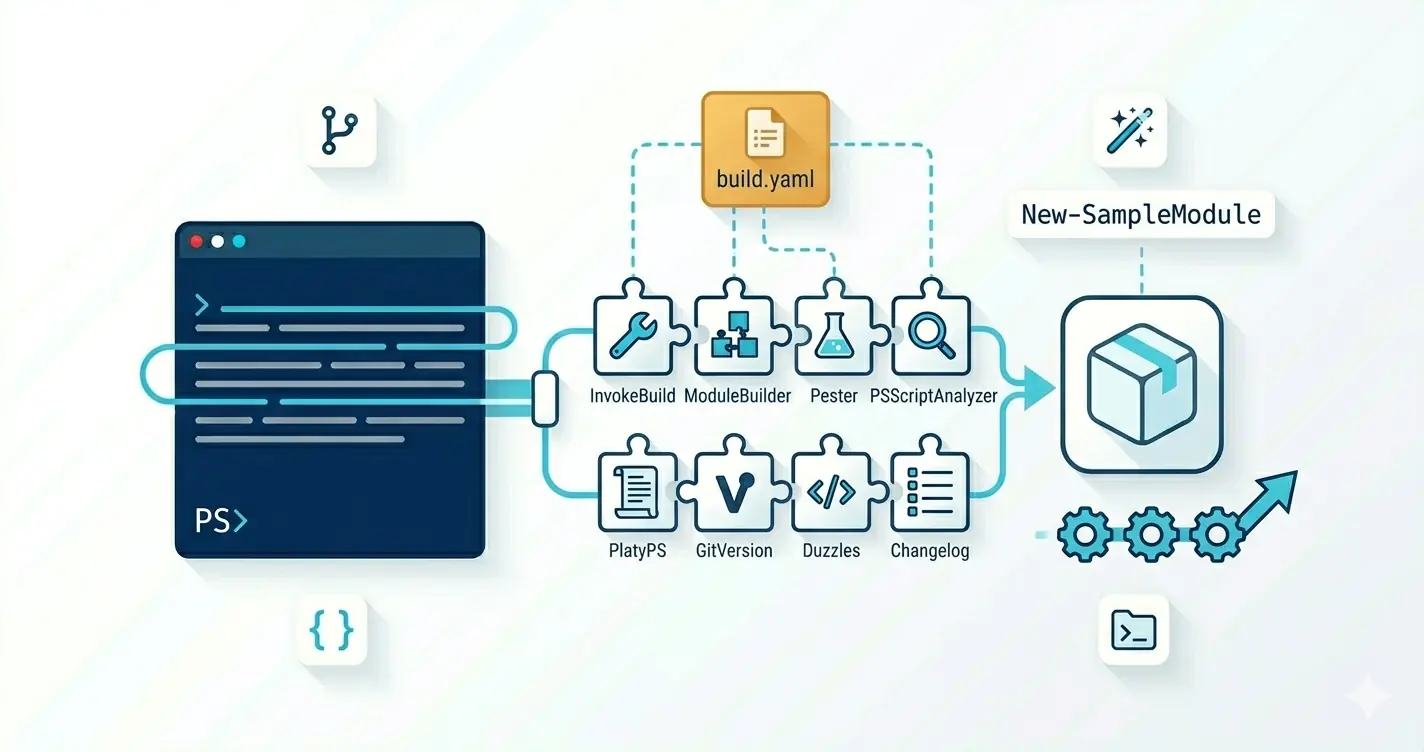
Pairs naturally with the Pester post (lints clean + tests pass is the right two-line CI quality bar) and the Sampler post (Sampler ships a PSScriptAnalyzerSettings.psd1 and the CI wiring already wired up).