This guide assumes you already have access to a GitLab project and are running PowerShell 7.4+ (ships
Microsoft.PowerShell.PSResourceGetby default) or have installed the module manually on PS 5.1/7.2+.
The PowerShell module distribution problem looks the same in every shop that has more than three engineers writing modules. Someone publishes a useful function. They zip the folder, drop it in a Teams chat, paste a usage example. Six months later three people have slightly different copies of MyOrg.AdHelpers on their machines, the bug fix in version 4 only ever made it to two of them, and nobody remembers which one is "current".
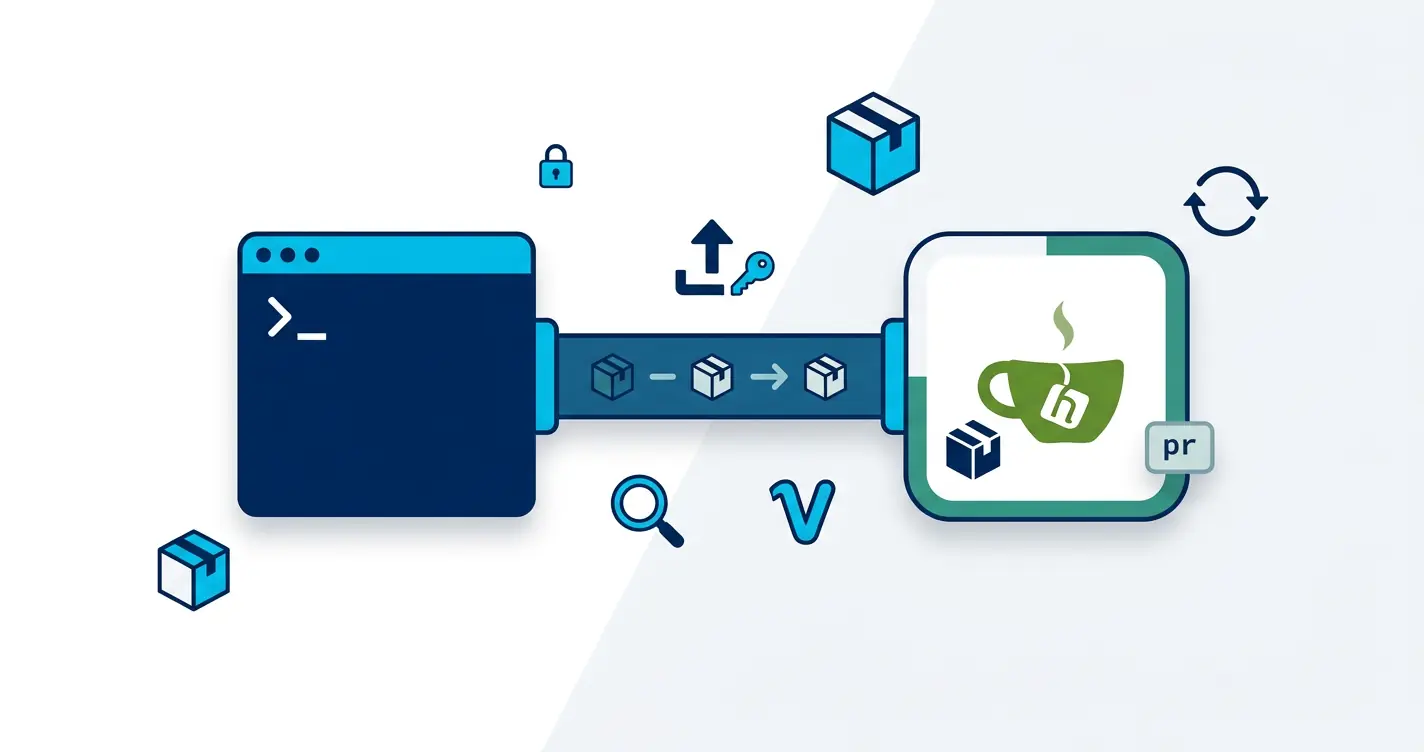
The PowerShell Gallery solves this for public modules. For internal modules, the answer is a private NuGet feed, and GitLab already has one built in the per-project Package Registry. PSResourceGet talks to it natively. No new infrastructure, no separate auth system, the same project tokens you already use for CI. This post is the six-command setup that gets a private module registry running on a GitLab instance you already have access to.
PSResourceGet vs PowerShellGet v2: this post uses the modern
Register-PSResourceRepository/Publish-PSResource/Find-PSResource/Install-PSResourcecmdlets fromMicrosoft.PowerShell.PSResourceGet. The olderRegister-PSRepository/Publish-Module/Find-Module/Install-Moduleflow still works against the same endpoint if you need it.
Install PSResourceGet (if needed)
PowerShell 7.4 and later ships Microsoft.PowerShell.PSResourceGet in the box. On older hosts:
Install-Module -Name Microsoft.PowerShell.PSResourceGet -Scope CurrentUser -Force -AllowClobber
Import-Module -Name Microsoft.PowerShell.PSResourceGet
Confirm:
Get-Command -Module Microsoft.PowerShell.PSResourceGet
Project Settings
If you have not activated the
"Package registry"feature for your project inSettings -> General -> Visibility, project features, permissions, you'll receive a 403 Forbidden response. Accessing the package registry via deploy token is not available when external authorization is enabled.
In order to allow anyone to pull from the
Package Registry, toggleAllow anyone to pull from Package Registryas shown below.

Create Token
To be able to push items to the registry, an API token must be created.
Go to Settings -> Access Tokens and add a new token with api permissions.

Save the token in a password manager or GitLab CI/CD variables. Consider storing it in
Microsoft.PowerShell.SecretManagementso it can be referenced via-CredentialInfoat publish time.
Setup PowerShell Repository
Get Project ID
Go to Settings > General and get the project ID.

The repository URL will follow the following format:
"https://gitlab.example.com/api/v4/projects/<Project ID>/packages/nuget/index.json"
In this case our project ID is
54so the URL will be:
"https://gitlab.example.com/api/v4/projects/54/packages/nuget/index.json"
Register the PS Repository
To make this step work, make sure to allow all to retrieve from the registry as mentioned in the Project Settings section.
Open PowerShell and register the GitLab repository with PSResourceGet:
$repoParams = @{
    Name    = 'gitlab'
    Uri     = 'https://gitlab.example.com/api/v4/projects/54/packages/nuget/index.json'
    Trusted = $true
}
Register-PSResourceRepository @repoParams
Verify the registration:
Get-PSResourceRepository -Name gitlab
Publish a Module
Now that we have registered the repository, we can publish modules or NuGet packages.
Publish-PSResource takes a -Path (the module folder, not just a name) and an -ApiKey:
$publishParams = @{
    Path       = '.\MyModule'
    Repository = 'gitlab'
    ApiKey     = '<Your Token>'
}
Publish-PSResource @publishParams
For a staged build output (see the C# module publishing post):
$publishParams = @{
    Path       = './out/MyModule/1.4.7'
    Repository = 'gitlab'
    ApiKey     = $env:GITLAB_TOKEN
}
Publish-PSResource @publishParams
-Pathmust point at the folder containing the.psd1, not at the.psd1itself and not at a parent folder. This is the most common "why won't it publish" mistake with PSResourceGet.
List All Modules
To list all modules in the registry:
Find-PSResource -Repository "gitlab"
For private registries, authenticate with -Credential:
$cred = [pscredential]::new(
    'any-username',
    (ConvertTo-SecureString $env:GITLAB_TOKEN -AsPlainText -Force)
)
Find-PSResource -Repository "gitlab" -Credential $cred
The username is ignored with token-based auth any non-empty string works.
Install a Module
To install a module from the repository:
Install-PSResource -Name "MyModule" -Repository "gitlab"
Always pin a version on production. PSResourceGet uses NuGet version range syntax, so [1.4.7] means "exactly 1.4.7":
Install-PSResource -Name "MyModule" -Repository "gitlab" -Version "[1.4.7]"
To save a module without installing (useful for air-gapped transfer):
Save-PSResource -Name "MyModule" -Repository "gitlab" -Path "D:\transfer\modules"
Pushing the Raw .nupkg
If you already have a packed .nupkg from a dotnet pack step in CI, push it directly with curl:
curl --header "JOB-TOKEN: $CI_JOB_TOKEN" \
     --upload-file "MyModule.1.4.7.nupkg" \
     "$CI_API_V4_URL/projects/$CI_PROJECT_ID/packages/nuget/"
Where to Take This Next
Three concrete next steps now that the registry exists:
- Move one real module to it. Pick the most-shared internal module in your team's repos, the one that gets emailed around.
Publish-PSResourceit once, then update the README to install it viaInstall-PSResource. The friction reduction will sell the rest of the team on the pattern within a week. - Wire publishing into CI. Use the
.gitea/workflows/publish.yml-style block (works on GitLab CI with a token swap) so a tagged commit auto-publishes a new version. ManualPublish-PSResourcefrom a laptop is fine for the first module; for the second one, automate it. - Pin versions in production. Anywhere a module gets installed by a service account or scheduled task, use
-Version '[1.4.7]'not "latest".Install-PSResourcefollows NuGet range syntax, the same[exact]notation works.
If your environment is Gitea instead of GitLab, the Gitea post is the identical pattern against a different package-registry endpoint. If your environment has neither, a plain file share is the air-gapped version of the same idea, simpler to bootstrap, harder to scale past a small team.