This guide assumes Powershell 5.1 or 7+ on Windows. The audit features themselves ship with Windows; nothing extra needs to be installed.
Default Windows installs ship with almost no Powershell auditing. Module logging is off, script-block logging is off, transcription is off. Anyone who lands on a host can run anything they want and the only artifact is the EventLog 400 "engine started" event useless for incident response.
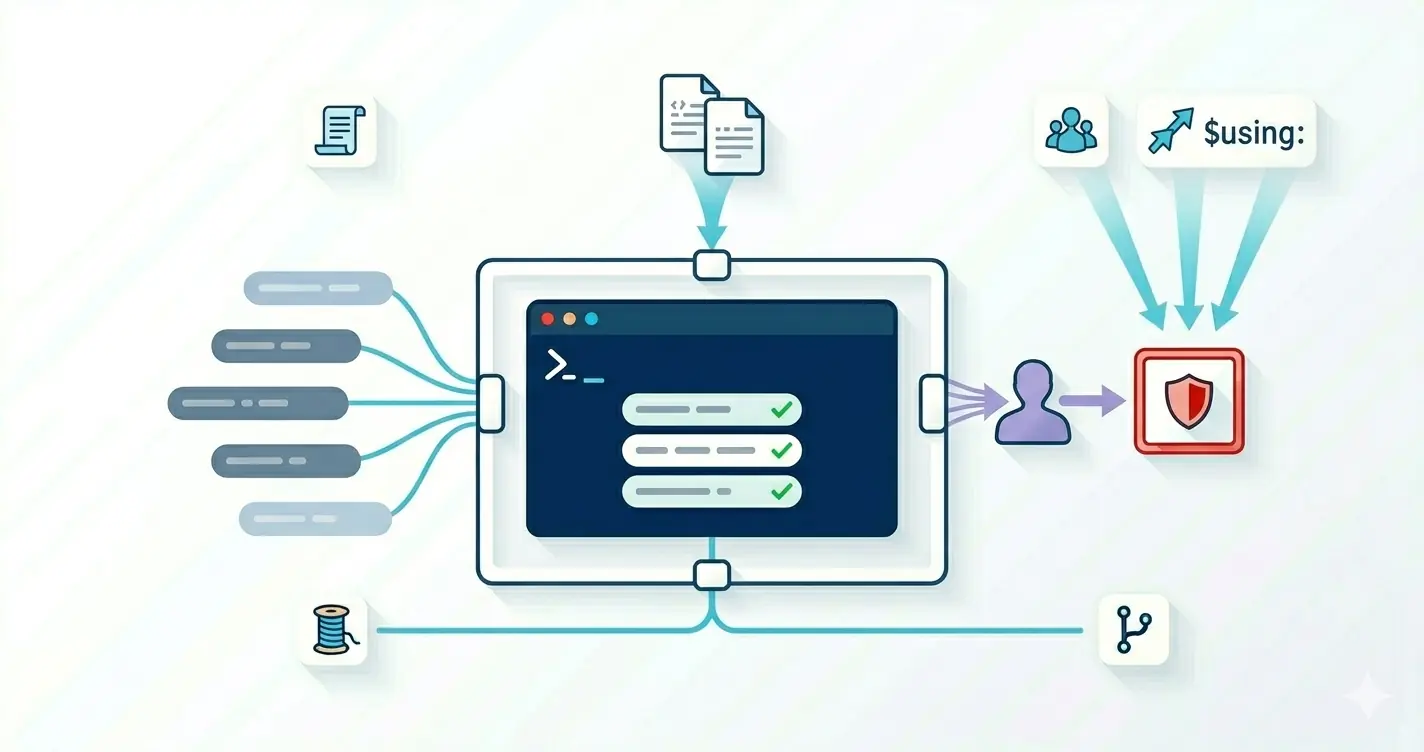
This post is about turning on the four things that actually matter, in the right order, without breaking anything in production.
What Each Log Captures
| Feature | Event log | Captures |
|---|---|---|
| Module logging | Microsoft-Windows-PowerShell/Operational (4103) |
Pipeline execution per cmdlet, with parameters |
| Script-block logging | Microsoft-Windows-PowerShell/Operational (4104) |
The script as the engine sees it, after de-obfuscation |
| Transcription | A .txt file per session |
Full input + output, like Start-Transcript |
| AMSI | Microsoft-Windows-Windows Defender/Operational (1116/1117) |
AV verdicts on script content |
Script-block logging is the single most valuable one. It captures what the engine actually executed even if the original input was Base64-encoded, compressed, or built dynamically with
Invoke-Expression. Anything else is supplementary.
Local Setup (One Host)
Useful for labs and for quick verification before you push GPO.
1. Script-Block Logging
$key = 'HKLM:\SOFTWARE\Policies\Microsoft\Windows\PowerShell\ScriptBlockLogging'
$null = New-Item $key -Force
Set-ItemProperty $key -Name EnableScriptBlockLogging         -Value 1 -Type DWord
Set-ItemProperty $key -Name EnableScriptBlockInvocationLogging -Value 1 -Type DWord
EnableScriptBlockInvocationLogging adds a 4105/4106 "started/completed" pair around every script block. Useful for timing, noisy on busy hosts. Turn it off if your event log fills up.
2. Module Logging
$key = 'HKLM:\SOFTWARE\Policies\Microsoft\Windows\PowerShell\ModuleLogging'
$null = New-Item $key -Force
Set-ItemProperty $key -Name EnableModuleLogging -Value 1 -Type DWord

# Log every module
$names = New-Item "$key\ModuleNames" -Force
Set-ItemProperty "$key\ModuleNames" -Name '*' -Value '*'
Logging every module is the default for a reason. Allow-listing is tempting but defeats the purpose attackers reach for the modules you didn't think to include.
3. Transcription
$key = 'HKLM:\SOFTWARE\Policies\Microsoft\Windows\PowerShell\Transcription'
$null = New-Item $key -Force
Set-ItemProperty $key -Name EnableTranscripting    -Value 1 -Type DWord
Set-ItemProperty $key -Name EnableInvocationHeader -Value 1 -Type DWord
Set-ItemProperty $key -Name OutputDirectory        -Value 'C:\PSLogs\Transcripts' -Type String

$null = New-Item 'C:\PSLogs\Transcripts' -ItemType Directory -Force
$acl = Get-Acl 'C:\PSLogs\Transcripts'
$acl.SetAccessRuleProtection($true, $false)
$rule = New-Object System.Security.AccessControl.FileSystemAccessRule(
    'NT AUTHORITY\SYSTEM','FullControl','ContainerInherit,ObjectInherit','None','Allow')
$acl.AddAccessRule($rule)
Set-Acl 'C:\PSLogs\Transcripts' $acl
Lock the transcript directory down to
SYSTEMonly. Default permissions let any local user read transcripts which often contain command-line passwords from the user next to them.
4. AMSI (Already On)
AMSI is enabled by default on Windows 10/11 and Server 2019+. Don't disable it. The relevant verdicts land in Microsoft-Windows-Windows Defender/Operational event IDs 1116 and 1117.
Verification
Run something distinctive and look for it in the log:
$marker = "audit-test-$([guid]::NewGuid())"
$null = Write-Output $marker
Get-WinEvent -LogName 'Microsoft-Windows-PowerShell/Operational' -MaxEvents 50 |
    Where-Object { $_.Id -in 4103,4104 -and $_.Message -match $marker }
If you see your marker, the loggers are alive. If you don't, double-check the registry keys half-applied GPO is the most common cause of "I turned it on but nothing's logged".
At Scale: Group Policy
The same four registry hives are exposed in GPO under:
Computer Configuration -> Administrative Templates -> Windows Components -> Windows PowerShell
Set:
- Turn on Module Logging -> Enabled, modules:
* - Turn on Script Block Logging -> Enabled
- Turn on PowerShell Transcription -> Enabled, output dir
\\fileserver\PSLogs$\%COMPUTERNAME% - Turn on PowerShell Script Execution -> Allow only signed (only after you've signed your internal modules)
Use a UNC path for transcripts. Local-only transcripts are useless during an incident by the time you log in, the attacker may have wiped them.
The receiving share needs:
- Hidden (
PSLogs$) so it's not casually browsable. Authenticated Users->Modify(need to write their own transcripts).Authenticated Users-> denyRead/Liston subfolders other than their own.- Auditing on, so deletes are themselves logged.
Sizing the Event Log
Default Operational log is 15 MB full in minutes on a busy host. Crank it:
wevtutil sl Microsoft-Windows-PowerShell/Operational /ms:1073741824    # 1 GB
wevtutil sl Microsoft-Windows-PowerShell/Operational /rt:false /ab:true
/rt:false /ab:true switches to "archive when full" so old events are saved to .evtx files in %SystemRoot%\System32\Winevt\Logs\Archive instead of being dropped.
Shipping to a SIEM
Two clean patterns:
A. Windows Event Forwarding (WEF)
Built in. A collector server pulls events from N subscriber hosts via winrm. Configure once, and every new host that joins the right collector group starts forwarding automatically.
wecutil and the Event Viewer subscription wizard cover the basics. The subscription query you want:
<QueryList>
  <Query Id="0" Path="Microsoft-Windows-PowerShell/Operational">
    <Select Path="Microsoft-Windows-PowerShell/Operational">
      *[System[(EventID=4103 or EventID=4104)]]
    </Select>
  </Query>
  <Query Id="1" Path="Microsoft-Windows-Windows Defender/Operational">
    <Select Path="Microsoft-Windows-Windows Defender/Operational">
      *[System[(EventID=1116 or EventID=1117)]]
    </Select>
  </Query>
</QueryList>
B. Direct to Splunk / Elastic / Sentinel
Install the vendor's agent (Splunk Universal Forwarder, Winlogbeat, Azure Monitor Agent) and point it at the same channels. For Winlogbeat:
winlogbeat.event_logs:
  - name: Microsoft-Windows-PowerShell/Operational
    event_id: 4103, 4104
  - name: Microsoft-Windows-Windows Defender/Operational
    event_id: 1116, 1117
output.elasticsearch:
  hosts: ['https://siem.example.com:9200']
Filter at the source. Forwarding every event from busy DCs will saturate your ingestion budget within a week.
Reading the Logs From Powershell
Day-to-day, you'll usually just want to query the local logs. A small wrapper helps:
function Get-PSAuditEvent
{
    [CmdletBinding()]
    param
    (
        [int]
        $LastMinutes = 60,

        [int[]]
        $EventIds  = @(4103,4104)
    )

    begin
    {
        Write-Verbose -Message '[Get-PSAuditEvent] Begin'
    }

    process
    {
        $start = (Get-Date).AddMinutes(-$LastMinutes)
        Get-WinEvent -FilterHashtable @{
            LogName   = 'Microsoft-Windows-PowerShell/Operational'
            Id        = $EventIds
            StartTime = $start
        } | Select-Object TimeCreated, Id,
            @{ N='User';   E={ $_.UserId } },
            @{ N='Script'; E={
                $_.Properties[2].Value -replace "`r?`n", ' '
            } }
    }

    end
    {
        Write-Verbose -Message '[Get-PSAuditEvent] End'
    }
}

Get-PSAuditEvent -LastMinutes 30 | Format-Table -AutoSize -Wrap
The script content for 4104 lives in Properties[2]. Pre-parsing that out is what turns "EventLog noise" into something you'd actually grep.
What to Skip
- Don't rely on
Start-Transcriptinside scripts as your primary audit source. It's user-controllable and easy to disable. - Don't filter script-block logging by length. The most interesting payloads are often tiny droppers.
- Don't log to a network share without quotas. A single misbehaving host can fill the share in minutes.
- Don't turn on script-block invocation logging (
4105/4106) at scale unless you have the storage it doubles event volume for marginal forensic value.
What to Do Next
A handful of registry keys (or a single GPO) buys you the visibility you should have had from day one. Script-block logging on, module logging on, transcripts to a locked-down share, events forwarded to a SIEM.
Three concrete moves to deploy this week:
- Apply the
PSLoggingGPO from the post to a single OU containing five test machines. Trigger a known-suspicious script on one of them. Verify the event lands in Event Viewer + your SIEM. The first time you see the script-block content reconstructed in a 4104, you understand why this matters. - Configure transcript directory to a locked-down server share, not a local path. Local transcripts are erased by an attacker; remote transcripts get one shot at being captured before the connection is severed.
- Forward the four event channels (
Microsoft-Windows-PowerShell/Operational,Windows PowerShell,Microsoft-Windows-Sysmon/Operational,Security) to your SIEM. Without forwarding, this entire post is a local-log story; with it, it's a fleet-wide detection story.
The hunting post takes this telemetry and shows what to do with it: the patterns real attackers reuse and how to detect them. The forensics post covers what happens after a hit lands.