This guide assumes Powershell 7+ (the JIT and BCL are markedly faster than 5.1) and that you can run scripts that import a few
System.*namespaces.
Powershell cmdlets are friendly, composable, and slow. Most of the time that doesn't matter a 50ms cmdlet inside a 5-second script is rounding error. But once you start processing tens of thousands of items, the wrapper overhead becomes the script. This post is a tour of the cases where dropping into the underlying .NET APIs is worth the extra verbosity, with benchmarks for each.
Rule of thumb: if a cmdlet wraps a single .NET call and you're calling it in a loop, the .NET call is faster. If you're calling it once on a 10-element collection, the cmdlet is fine.
How to Benchmark Honestly
Every comparison below uses the same harness:
function Measure-It
{
    [CmdletBinding()]
    param
    (
        [Parameter(Mandatory)]
        [scriptblock]
        $Action,

        [int]
        $Iterations = 5
    )

    begin
    {
        Write-Verbose -Message '[Measure-It] Begin'
    }

    process
    {
        # Warm up - JIT, caches, branch predictor
        for ($i = 0; $i -lt 2; $i++) { & $Action | Out-Null }

        $times = for ($i = 0; $i -lt $Iterations; $i++) {
            (Measure-Command { & $Action }).TotalMilliseconds
        }

        [pscustomobject]@{
            MinMs    = ($times | Measure-Object -Minimum).Minimum
            MedianMs = ($times | Sort-Object)[[int]($times.Count / 2)]
            MaxMs    = ($times | Measure-Object -Maximum).Maximum
        }
    }

    end
    {
        Write-Verbose -Message '[Measure-It] End'
    }
}
Always run a couple of warmup iterations and report the median, not the mean. The first run includes JIT compilation and the slowest run is usually a GC pause neither tells you the steady-state cost.
All numbers below are from a single test run on Powershell 7.4 on a Ryzen-class workstation. Your mileage will vary, but the ratios are what matter.
File I/O
Reading a Large Text File
Cmdlet:
$lines = Get-Content .\big.log
Get-Content returns one element per line and runs each through the pipeline. For a 500 MB log file, that's millions of pipeline invocations.
.NET:
$lines = [System.IO.File]::ReadAllLines('.\big.log')
| Approach | 500 MB file | Notes |
|---|---|---|
Get-Content |
~28,000 ms | One pipeline event per line |
Get-Content -Raw |
~1,400 ms | Returns one giant string |
[IO.File]::ReadAllLines() |
~1,100 ms | Returns string[] |
[IO.File]::ReadAllText() |
~900 ms | Returns one giant string |
If you need to grep, use
Select-String -Pathdirectly it streams and never materializes the file. The fastest way to count matching lines is still[IO.File]::ReadLines()in aforeach, which streams without allocating.
Writing a Large Text File
# Cmdlet
$lines | Out-File .\out.txt

# Cmdlet, slightly better
$lines | Set-Content .\out.txt

# .NET
[System.IO.File]::WriteAllLines('.\out.txt', $lines)
| Approach | 1M lines |
|---|---|
Out-File |
~9,500 ms |
Set-Content |
~6,200 ms |
[IO.File]::WriteAllLines() |
~700 ms |
StreamWriter in a foreach |
~650 ms |
Out-File is the slowest because it goes through the formatting subsystem (the same one that builds the table view in your console).
String Building
The single most common Powershell performance bug:
# DON'T DO THIS
$s = ''
foreach ($x in $items) { $s += "$x`n" }
Strings are immutable in .NET. Every += allocates a new string and copies the old one. That's O(n²) work for n appends.
# Use StringBuilder
$sb = [System.Text.StringBuilder]::new()
foreach ($x in $items) { [void]$sb.AppendLine($x) }
$s = $sb.ToString()
| Approach | 100k items | 1M items |
|---|---|---|
$s += "$xn"` |
~7,000 ms | (don't try) |
-join |
~80 ms | ~900 ms |
StringBuilder |
~70 ms | ~750 ms |
-joinis almost as fast asStringBuilderand a one-liner. Reach forStringBuilderonly when you're conditionally appending across many branches.
Collection Building
Same disease, different cmdlet:
# DON'T DO THIS
$out = @()
foreach ($x in $items) { $out += $x }
Same O(n²) pattern Powershell arrays are immutable; += allocates and copies the whole array every time.
Three faster options:
# A. List<T> - best for known item types
$list = [System.Collections.Generic.List[object]]::new()
foreach ($x in $items) { $list.Add($x) }

# B. Pipeline output capture
$out = foreach ($x in $items) { Process $x }

# C. ArrayList - works but uses object[] internally; prefer List<T>
$al = [System.Collections.ArrayList]::new()
foreach ($x in $items) { [void]$al.Add($x) }
| Approach | 100k items |
|---|---|
+= to array |
~14,000 ms |
ArrayList |
~80 ms |
List<object> |
~50 ms |
| Pipeline capture | ~40 ms |
The pipeline-capture pattern ($out = foreach (...) { ... }) is both the fastest and the most idiomatic. Use it whenever you can.
Hashing
# Cmdlet - opens the file, reads it through the pipeline, formats output
Get-FileHash .\big.bin -Algorithm SHA256

# .NET - direct
$sha    = [System.Security.Cryptography.SHA256]::Create()
$stream = [System.IO.File]::OpenRead('.\big.bin')
try { $hash = $sha.ComputeHash($stream) } finally { $stream.Dispose(); $sha.Dispose() }
[BitConverter]::ToString($hash) -replace '-'
| Approach | 1 GB file |
|---|---|
Get-FileHash |
~5,200 ms |
SHA256.Create() |
~3,800 ms |
About 25% faster, mostly because you skip the cmdlet's output formatting. The bigger win shows up when hashing many small files in a loop:
| Approach | 10,000 small files |
|---|---|
Get-FileHash per file |
~28,000 ms |
Reused SHA256 instance |
~3,200 ms |
Reusing the hasher across files (instead of letting Get-FileHash create a new one every call) is where the real gain lives.
HTTP
# Cmdlet
$resp = Invoke-RestMethod 'https://api.example.com/items'

# .NET
$client = [System.Net.Http.HttpClient]::new()
try
{
    $json = $client.GetStringAsync('https://api.example.com/items').GetAwaiter().GetResult()
    $resp = $json | ConvertFrom-Json
} finally { $client.Dispose() }
For a single request these are within noise of each other. The interesting case is many requests:
| Approach | 1,000 sequential requests |
|---|---|
Invoke-RestMethod per call |
~38,000 ms |
Single HttpClient reused |
~12,000 ms |
HttpClient + ForEach -Parallel |
~2,200 ms |
Invoke-RestMethod creates and tears down a new HttpClient (and its TCP connection) every call. Reusing one HttpClient keeps connections alive that's the whole win.
Never
new HttpClient()per call in real code. Either use one long-lived instance, or useIHttpClientFactoryif you're inside a hosted app. The cmdlet's per-call cost is a real bug, not a quirk.
JSON
ConvertFrom-Json calls System.Text.Json under the hood in PS 7+. For most workloads they're identical. The exception is deeply nested or repetitive JSON, where you want to skip Powershell's PSCustomObject materialization:
$doc = [System.Text.Json.JsonDocument]::Parse((Get-Content .\big.json -Raw))
foreach ($el in $doc.RootElement.EnumerateArray())
{
    $name = $el.GetProperty('name').GetString()
    # ...
}
$doc.Dispose()
| Approach | 50 MB JSON, iterate 1M values |
|---|---|
ConvertFrom-Json + .foreach |
~9,800 ms |
JsonDocument walking |
~1,400 ms |
The cost of ConvertFrom-Json isn't parsing it's allocating one PSCustomObject per object. If you're going to throw 99% of them away, walk the JsonDocument directly.
Regex
# Cmdlet (uses [regex] under the hood, but recompiles per call)
$lines | Where-Object { $_ -match '^\d{4}-\d{2}-\d{2}' }

# .NET - compile once, reuse
$rx = [regex]::new('^\d{4}-\d{2}-\d{2}', 'Compiled')
$lines | Where-Object { $rx.IsMatch($_) }
| Approach | 1M lines |
|---|---|
-match operator |
~3,800 ms |
Cached [regex] (no Compiled) |
~2,900 ms |
Cached [regex] (Compiled) |
~1,500 ms |
The Compiled flag has a one-time JIT cost (~50 ms). For any regex you're going to run more than a few thousand times, it pays for itself immediately.
XML
Select-Xml is convenient but slow. For high-volume XML, use XmlDocument directly:
$doc = [System.Xml.XmlDocument]::new()
$doc.Load('.\events.xml')
$nodes = $doc.SelectNodes('//Event[@severity="High"]')
| Approach | 100 MB XML |
|---|---|
Select-Xml |
~14,000 ms |
XmlDocument.SelectNodes |
~3,200 ms |
XmlReader (streaming) |
~1,800 ms |
For XML you only walk once, XmlReader is fastest and uses constant memory regardless of file size.
Sorting Large Collections
Sort-Object is brutally slow on large collections because it uses pipeline objects and a stable sort with reflection-based property access:
# Cmdlet
$sorted = $items | Sort-Object Name

# .NET LINQ
$sorted = [Linq.Enumerable]::OrderBy($items, [Func[object,string]] { param($x) $x.Name })
| Approach | 1M strings |
|---|---|
Sort-Object |
~22,000 ms |
[Array]::Sort($arr) |
~250 ms |
LINQ OrderBy |
~900 ms |
[Array]::Sort() is the right tool when you have a homogeneous primitive array. For object property sorts, LINQ's OrderBy is ~25x faster than Sort-Object.
Where the Cmdlets Are Actually Faster
It's not always one-way. A few cases where the cmdlet is the right call:
- Anything that runs once or twice. The .NET version's verbosity is not worth shaving 100 ms off a 10-second script.
Compare-Objectfor small sets the .NET equivalent (Except/Intersect) needs custom equality comparers forPSObjects and ends up about the same speed for less than ~10k items.ConvertTo-Json/ConvertFrom-Jsonwhen you actually wantPSCustomObjectoutput. The wrapper cost is the feature in that case.- Anything that needs
-WhatIf/-Confirmyou'd have to reimplement that whole layer. - Anything where the cmdlet wraps several .NET calls into one operation e.g.
Get-ChildItem -Recursedoes enumeration plus filtering plus error handling that[IO.Directory]::EnumerateFiles()doesn't, even though the latter is faster on the happy path.
Patterns That Stay Fast Either Way
A handful of habits make any Powershell faster, cmdlet or not:
- Stream, don't collect.
foreachover the pipeline; never@()something you're about to filter further. .Where()and.ForEach()methods beatWhere-Object/ForEach-Objectby 2–5x because they skip the pipeline machinery.- Pre-size your collections.
[List[object]]::new(1000000)skips a dozen reallocations. - Use typed variables in hot loops.
[int]$i = 0; while ($i -lt $n) { ... }avoids boxing. - Avoid
Write-Hostin tight loops. EvenWrite-Verbosehas measurable cost when called millions of times.
When to Reach for .NET, in One Table
| Situation | Use |
|---|---|
| > 100k iterations of anything | .NET |
| Hot loop inside a long-running service | .NET |
| Reusable HTTP / DB / hash client | .NET |
| Building strings or collections in a loop | .NET (or -join / pipeline capture) |
| Anything called once during a script | Cmdlet |
Anything where you want -WhatIf |
Cmdlet |
| Reading the latest line of a small log | Cmdlet |
| Quick interactive one-liner | Cmdlet |
What to Do Next
Cmdlets are an interface layer: friendly, formatted, pipeline-aware, designed for human-scale workloads. The .NET APIs underneath them are designed for machine-scale workloads. Both are good PowerShell. The skill is knowing which one you're writing in any given line of code, and switching when the numbers say to.
Three concrete moves to apply this:
- Pick the slowest script in your team's automation. Run the
Measure-Itharness from the post against the three hottest cmdlet calls inside it. The bottleneck is almost never where you guessed. - Replace one
+=to an array in a loop with[List[object]]::new()in the script you most recently committed. Re-run, measure. The speedup will pay for the read. - For your next file-parsing script, default to
[System.IO.File]::ReadAllLines()instead ofGet-Content. Cmdlet streaming is great when you need the streaming; for "read this 50 MB log into memory once", the .NET API is an order of magnitude faster.
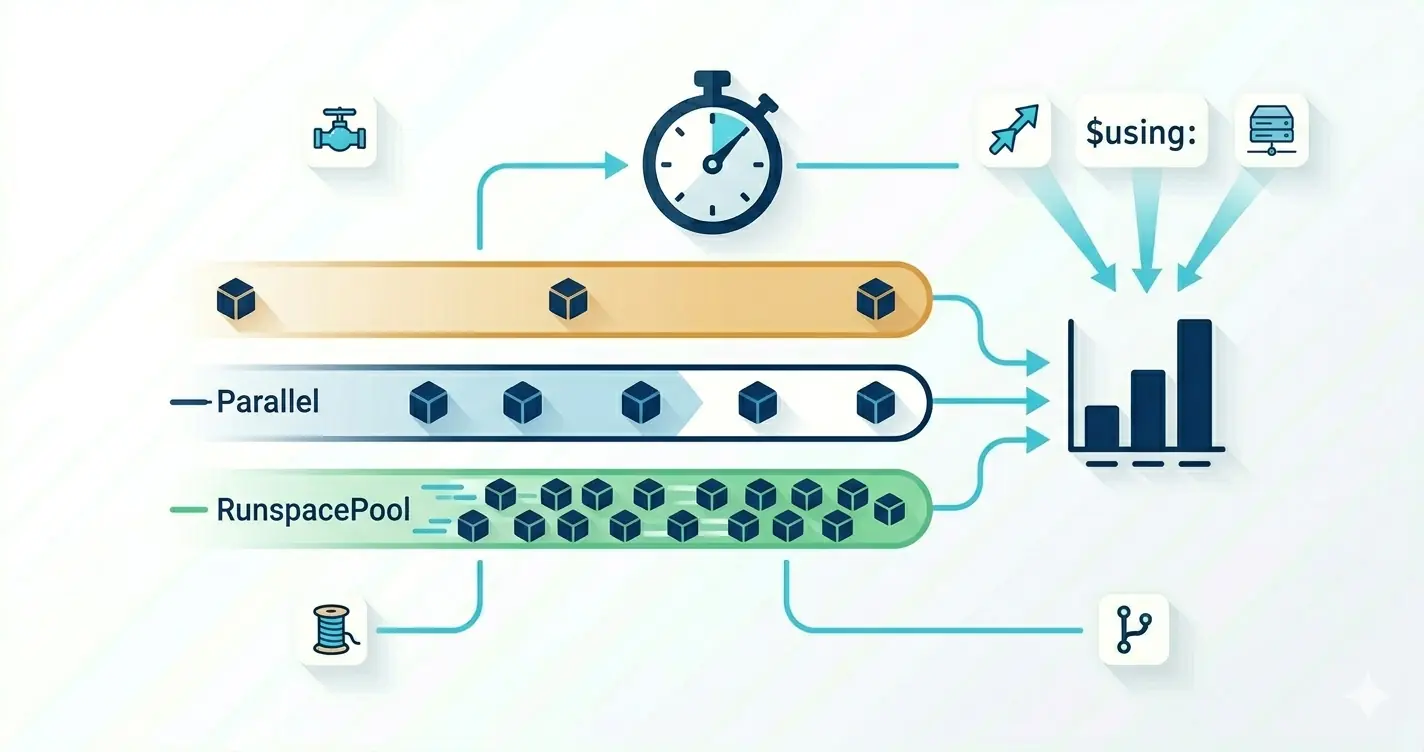
Pairs naturally with the parallelism post (the second axis to optimize after switching to .NET APIs is whether the work is parallelisable at all) and with the C# module series (the natural endpoint when "drop into .NET" becomes the whole script, not just a hot loop).