This guide assumes a domain-joined Windows machine with RSAT installed (
Add-WindowsCapability -Online -Name Rsat.ActiveDirectory.DS-LDS.Tools~~~~0.0.1.0) and a user with at least delegated read across the OUs you target.
The flashy AD posts are all about Graph and Entra. This one is about the unglamorous on-prem work that still consumes hours every week and the patterns that make it survive at scale.
A Few Habits That Save Hours
Three rules I apply to every AD script:
- Always use
-SearchBaseand-Filter.Get-ADUser -Filter *against a 100k-user domain will time out and bury the DC's CPU. Filter at the server, not the client. - Always select the properties you need with
-Properties. The default property set is small on purpose. Forget this and you'll spend an hour debugging whyLastLogonDateis$null. - Always paginate or stream.
Get-ADUserreturns objects through the pipeline let them flow, don't@()them.
# Bad - full domain scan, all default properties, materialized to memory
$users = @(Get-ADUser -Filter *)

# Good - scoped, narrow, streaming
$search = @{
    SearchBase = 'OU=Staff,DC=corp,DC=example,DC=com'
    Filter     = 'Enabled -eq $true'
    Properties = 'LastLogonDate', 'Title'
}
Get-ADUser @search |
    Where-Object { $_.LastLogonDate -lt (Get-Date).AddDays(-90) }
Bulk Onboarding from CSV
The classic ask: take a CSV of new hires and create their accounts.
<#
.SYNOPSIS
    Creates AD users from a CSV. Idempotent - skips users that already exist.
#>
[CmdletBinding(SupportsShouldProcess)]
param(
    [Parameter(Mandatory)] [string]$CsvPath,
    [Parameter(Mandatory)] [string]$OU,
    [string]$UpnSuffix = 'corp.example.com'
)

$ErrorActionPreference = 'Stop'

Import-Csv $CsvPath | ForEach-Object {
    $sam = ($_.FirstName.Substring(0,1) + $_.LastName).ToLower()

    if (Get-ADUser -Filter "SamAccountName -eq '$sam'" -ErrorAction SilentlyContinue)
    {
        Write-Verbose "$sam already exists, skipping"
        return
    }

    $params = @{
        Name              = "$($_.FirstName) $($_.LastName)"
        GivenName         = $_.FirstName
        Surname           = $_.LastName
        SamAccountName    = $sam
        UserPrincipalName = "$sam@$UpnSuffix"
        EmailAddress      = "$sam@$UpnSuffix"
        Department        = $_.Department
        Title             = $_.Title
        Path              = $OU
        Enabled           = $true
        AccountPassword   = (ConvertTo-SecureString -AsPlainText -Force (
            -join ((33..126) | Get-Random -Count 20 | ForEach-Object { [char]$_ })
        ))
        ChangePasswordAtLogon = $true
    }

    if ($PSCmdlet.ShouldProcess($params.UserPrincipalName, 'Create AD user'))
    {
        New-ADUser @params
        Write-Output "Created $($params.UserPrincipalName)"
    }
}
SupportsShouldProcessgives you-WhatIfand-Confirmfor free. For an onboarding script that touches 200 accounts, that single attribute is the difference between a confident dry-run and a panicked rollback.
Stale-Account Cleanup
The single most common AD audit finding. The DC tracks LastLogonDate (replicated, ~14-day accuracy) and per-DC lastLogonTimestamp (authoritative but per-DC).
function Get-StaleADUser
{
    [CmdletBinding()]
    param
    (
        [int]
        $DaysIdle = 90,

        [string]
        $SearchBase
    )

    begin
    {
        Write-Verbose -Message '[Get-StaleADUser] Begin'
    }

    process
    {
        $cutoff = (Get-Date).AddDays(-$DaysIdle)

        $params = @{
            Filter     = "Enabled -eq `$true -and LastLogonDate -lt '$cutoff'"
            Properties = 'LastLogonDate','Department','Manager','Created','PasswordLastSet'
        }
        if ($SearchBase) { $params.SearchBase = $SearchBase }

        Get-ADUser @params | Select-Object SamAccountName, Department,
            @{ N = 'IdleDays';   E = { [int]((Get-Date) - $_.LastLogonDate).TotalDays } },
            @{ N = 'AgeDays';    E = { [int]((Get-Date) - $_.Created).TotalDays } },
            LastLogonDate, PasswordLastSet
    }

    end
    {
        Write-Verbose -Message '[Get-StaleADUser] End'
    }
}

Get-StaleADUser -DaysIdle 90 |
    Sort-Object IdleDays -Descending |
    Export-Csv .\stale-users.csv -NoTypeInformation
For true "never logged on" detection, you need to query every DC for lastLogonTimestamp directly LastLogonDate lags by up to 14 days. A safe pattern: anything with LastLogonDate -lt 90.days.ago is a candidate, then confirm by querying each DC.
Group-Sprawl Reports
Show me an enterprise AD and I'll show you 50 nested groups doing the work of 5. A report that surfaces the depth of the nesting is the first step to fixing it.
function Get-ADGroupTree
{
    [CmdletBinding()]
    param
    (
        [Parameter(Mandatory)]
        [string]
        $Identity,

        [int]
        $Depth = 0,

        [System.Collections.Generic.HashSet[string]]
        $Seen = (
            [System.Collections.Generic.HashSet[string]]::new()
        )
    )

    begin
    {
        Write-Verbose -Message '[Get-ADGroupTree] Begin'
    }

    process
    {
        $g = Get-ADGroup -Identity $Identity -Properties Members
        if (-not $Seen.Add($g.DistinguishedName)) { return }       # cycle break

        [pscustomobject]@{
            Depth = $Depth
            Group = $g.Name
            Dn    = $g.DistinguishedName
        }

        foreach ($m in $g.Members)
        {
            $obj = Get-ADObject -Identity $m -Properties objectClass
            if ($obj.objectClass -eq 'group')
            {
                Get-ADGroupTree -Identity $obj -Depth ($Depth + 1) -Seen $Seen
            }
        }
    }

    end
    {
        Write-Verbose -Message '[Get-ADGroupTree] End'
    }
}

Get-ADGroupTree -Identity 'AppOwners' | Format-Table @{ N='-'; E={ '  ' * $_.Depth + $_.Group } }, Dn
The HashSet plus an Add() short-circuit handles the depressingly common case of a group containing itself transitively.
Effective Group Membership
For audit answers like "what does Bob actually have access to?" the relevant call is Get-ADUser -Identity bob -Properties memberOf plus the recursive expansion of every group:
function Get-EffectiveGroup
{
    param([string]$User)

    $direct = (Get-ADUser -Identity $User -Properties memberOf).memberOf
    $all    = [System.Collections.Generic.HashSet[string]]::new()

    function Expand([string]$dn)
    {
        if (-not $all.Add($dn)) { return }
        $g = Get-ADGroup -Identity $dn -Properties memberOf
        foreach ($parent in $g.memberOf) { Expand $parent }
    }

    foreach ($dn in $direct) { Expand $dn }

    $all | ForEach-Object { (Get-ADGroup -Identity $_).Name } | Sort-Object
}

Get-EffectiveGroup -User bob
Inspecting ACLs on OUs
Delegated permissions on OUs are where most "I have no idea who can do what" problems live. You can read them directly:
function Get-OUAcl
{
    [CmdletBinding()]
    param
    (
        [Parameter(Mandatory)]
        [string]
        $OU
    )

    begin
    {
        Write-Verbose -Message '[Get-OUAcl] Begin'
    }

    process
    {
        $path = "AD:\$OU"
        (Get-Acl -Path $path).Access |
            Where-Object { $_.IdentityReference -notlike 'NT AUTHORITY\*' -and
                           $_.IdentityReference -notlike 'BUILTIN\*' } |
            Select-Object @{ N='Identity'; E={ $_.IdentityReference } },
                          ActiveDirectoryRights,
                          AccessControlType,
                          InheritanceType,
                          @{ N='Inherited'; E={ $_.IsInherited } }
    }

    end
    {
        Write-Verbose -Message '[Get-OUAcl] End'
    }
}

Get-OUAcl 'OU=Servers,DC=corp,DC=example,DC=com' |
    Sort-Object Identity |
    Format-Table -AutoSize
Run this monthly on every top-level OU and diff the output against last month. Drift in OU ACLs is almost always either an audit finding or an active incident.
Bulk Group-Membership Sync
A surprisingly common pattern: HR maintains a list of "people who should be in Group X", you have to make AD match. Compute the diff first, then apply the smallest set of changes.
function Sync-ADGroupMembership
{
    [CmdletBinding(SupportsShouldProcess)]
    param
    (
        [Parameter(Mandatory)]
        [string]
        $Group,

        [Parameter(Mandatory)]
        [string[]]
        $DesiredMembers   # SamAccountNames
    )

    begin
    {
        Write-Verbose -Message '[Sync-ADGroupMembership] Begin'
    }

    process
    {
        $current = Get-ADGroupMember -Identity $Group | Select-Object -ExpandProperty SamAccountName
        $toAdd    = $DesiredMembers | Where-Object { $_ -notin $current }
        $toRemove = $current        | Where-Object { $_ -notin $DesiredMembers }

        foreach ($u in $toAdd)
        {
            if ($PSCmdlet.ShouldProcess("$u -> $Group", 'Add'))
            {
                Add-ADGroupMember -Identity $Group -Members $u
            }
        }
        foreach ($u in $toRemove)
        {
            if ($PSCmdlet.ShouldProcess("$u <- $Group", 'Remove'))
            {
                Remove-ADGroupMember -Identity $Group -Members $u -Confirm:$false
            }
        }

        [pscustomobject]@{ Group = $Group; Added = $toAdd.Count; Removed = $toRemove.Count }
    }

    end
    {
        Write-Verbose -Message '[Sync-ADGroupMembership] End'
    }
}
Always compute the diff. Re-adding everyone every run is wasteful and pollutes the audit log; mass-removing-then-re-adding briefly drops everyone's access and triggers downstream provisioning systems.
Computer Object Hygiene
The same stale logic for computer accounts usually the cause of "we have 8000 'computers' in AD but only 5000 real machines":
Get-ADComputer -Filter 'Enabled -eq $true' -Properties LastLogonDate, OperatingSystem |
    Where-Object { $_.LastLogonDate -lt (Get-Date).AddDays(-90) } |
    Sort-Object LastLogonDate |
    Select-Object Name, OperatingSystem, LastLogonDate
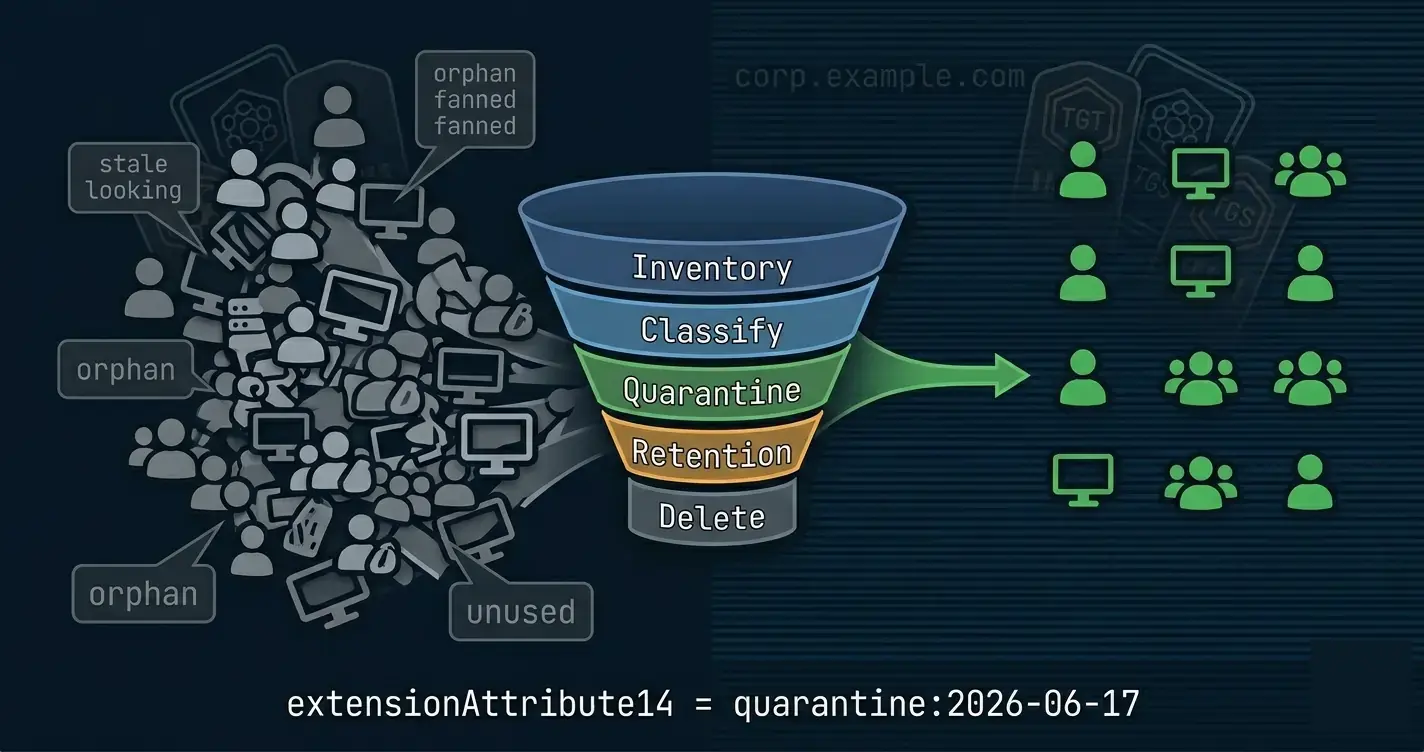
A good cleanup loop: disable everything stale for 30 days, move it to an OU=Disabled,..., delete after another 30. Reversible at every step.
Finding Privileged Accounts
Classic security audit:
$privGroups = 'Domain Admins','Enterprise Admins','Schema Admins',
              'Account Operators','Backup Operators','Server Operators',
              'Print Operators','DnsAdmins','Cert Publishers'

$privGroups | ForEach-Object {
    $g = $_
    Get-ADGroupMember -Identity $g -Recursive |
        Where-Object objectClass -eq 'user' |
        Select-Object @{ N='Group'; E={ $g } }, Name, SamAccountName
} |
    Group-Object SamAccountName |
    Sort-Object Count -Descending |
    Format-Table Count, Name, @{ N='Groups'; E={ ($_.Group.Group -join ', ') } }
People with multiple privileged-group memberships are usually the audit findings.
Password-Policy Audit
Fine-grained password policies are often misconfigured and never inspected:
Get-ADFineGrainedPasswordPolicy -Filter * |
    Select-Object Name, Precedence,
                  MinPasswordLength, MaxPasswordAge, LockoutThreshold,
                  @{ N='AppliesTo'; E={ ($_.AppliesTo | ForEach-Object { (Get-ADObject $_).Name }) -join ', ' } }
Putting It Together A Weekly Health Report
$report = [ordered]@{
    StaleUsers       = (Get-StaleADUser -DaysIdle 90).Count
    StaleComputers   = (Get-ADComputer -Filter 'Enabled -eq $true' -Properties LastLogonDate |
                        Where-Object { $_.LastLogonDate -lt (Get-Date).AddDays(-90) }).Count
    DomainAdmins     = (Get-ADGroupMember 'Domain Admins' -Recursive | Where-Object objectClass -eq 'user').Count
    EmptyOUs         = (Get-ADOrganizationalUnit -Filter * | Where-Object {
                            -not (Get-ADObject -SearchBase $_.DistinguishedName -SearchScope OneLevel -Filter *)
                       }).Count
    GeneratedAt      = Get-Date
}

[pscustomobject]$report | ConvertTo-Json | Set-Content .\ad-health.json
Pipe the JSON into Zabbix (with a UserParameter from the process logging post) or Grafana and you have a free AD dashboard.
What to Do Next
The ActiveDirectory module isn't glamorous, but it's the workhorse of every Windows shop. Filter at the server, ask for only the properties you need, write idempotent scripts that compute diffs, and put SupportsShouldProcess on anything that mutates.
Three concrete moves to apply this on Monday:
- Run the stale-account report once against your production domain. Just the read, no remediation. The first conversation about "do we know who these 47 people are?" is the cultural shift that makes the rest of AD-as-code possible.
- Pick the most-frequently-edited helper script your AD admins reach for and add
[CmdletBinding(SupportsShouldProcess)]. Every call site instantly gets-WhatIfand-Confirm. The next destructive run becomes a confidence-building dry-run instead of a panic. - Replace one
Get-ADUser -Filter *with a properly scoped-SearchBaseand-Propertiescall. Time both withMeasure-Command. The speedup is the answer to "why has the audit script been getting slower."
This is the entry point to the Get-Test-Set series, which takes these patterns and turns them into a full idempotent reconciler for OUs, groups, ACLs, and the rest of the directory. If you've felt the pain in this post, that series is what to read next.