This guide assumes Powershell 5.1 or 7+. Everything here works the same on both.
If you've ever written a Powershell command that wrapped halfway across the screen with eight backticks holding it together, you've already met the problem splatting solves. It's one of the highest-value features in the language and almost nobody writes a beginner post about it.
This is that post.
The Problem
A real call to New-ADUser looks like this:
New-ADUser -Name 'Alice Smith' -GivenName 'Alice' -Surname 'Smith' -SamAccountName 'asmith' -UserPrincipalName '[email protected]' -Path 'OU=Staff,DC=corp,DC=example,DC=com' -AccountPassword $pw -Enabled $true -Department 'Engineering' -Title 'Software Engineer'
You have three bad options:
# 1. The horizontal scroll
New-ADUser -Name 'Alice Smith' -GivenName 'Alice' -Surname 'Smith' -SamAccountName 'asmith' ...

# 2. The backtick parade - one typo and the command silently breaks
New-ADUser -Name 'Alice Smith' `
           -GivenName 'Alice' `
           -Surname 'Smith' `
           ...

# 3. Just don't bother with named parameters and rely on positional binding
New-ADUser 'Alice Smith' 'Alice' 'Smith'   # which arg was which?
Splatting is option 4.
Hash Splatting
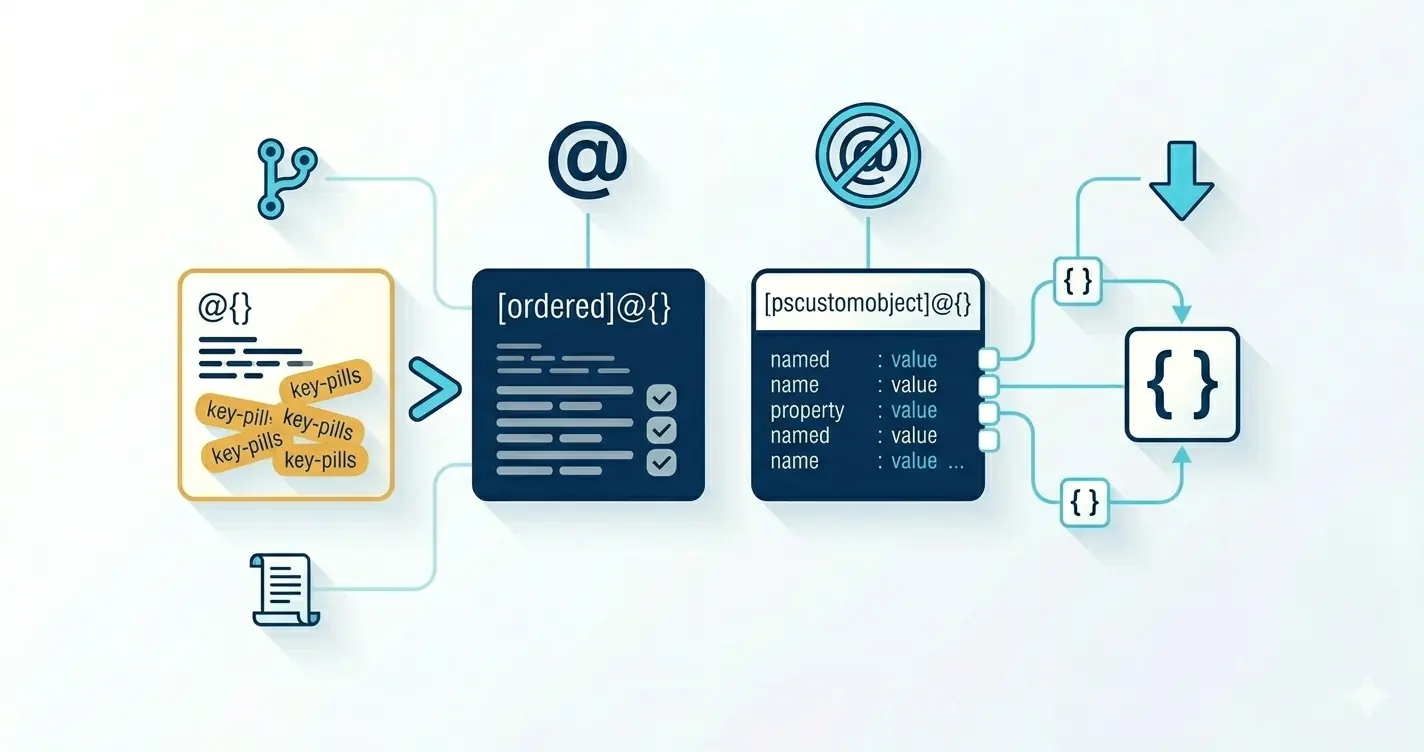
Build the parameters as a hashtable, then @-splat it in:
$params = @{
    Name              = 'Alice Smith'
    GivenName         = 'Alice'
    Surname           = 'Smith'
    SamAccountName    = 'asmith'
    UserPrincipalName = '[email protected]'
    Path              = 'OU=Staff,DC=corp,DC=example,DC=com'
    AccountPassword   = $pw
    Enabled           = $true
    Department        = 'Engineering'
    Title             = 'Software Engineer'
}

New-ADUser @params
That's it. The @params (note: @, not $) tells Powershell to expand the hashtable's keys as parameter names and the values as parameter values.
@paramsvs$params$paramspasses the hashtable itself as a single value.@paramssplats it. One character of difference, completely different behavior.
Switch Parameters
Switches like -Force, -Recurse, -Confirm need a boolean value when splatted:
$params = @{
    Path    = '.\big-folder'
    Recurse = $true
    Force   = $true
}
Get-ChildItem @params
You can mix splatting with regular parameters on the same call:
Get-ChildItem @params -Filter '*.log'
Splatted parameters win if the same name appears twice but don't rely on that. Decide once which form a parameter belongs in.
Conditional Parameters The Real Power
This is where splatting earns its keep. Building a hashtable lets you decide whether a parameter shows up at all:
function Get-Report
{
    param(
        [string]$Path,
        [int]$MaxAgeDays,
        [string]$Filter
    )

    $params = @{ Path = $Path }
    if ($PSBoundParameters.ContainsKey('MaxAgeDays'))
    {
        $params.MaxAgeDays = $MaxAgeDays
    }
    if ($Filter)
    {
        $params.Filter = $Filter
    }

    Invoke-ReportTool @params
}
Compare to the alternative three nearly-identical if/else branches that each call Invoke-ReportTool with a different combination. Splatting keeps the call site to one line.
Why this matters: many cmdlets behave differently when you pass a parameter at all versus when you pass
$null. Splatting lets you express omitted cleanly.Get-ADUser -Filter $nullis an error; never including-Filteris fine.
Array Splatting (Positional)
Less common, but useful for shelling out to native commands:
$args = @('--config', 'prod.yaml', '--log-level', 'debug', '--dry-run')
my-tool.exe @args
The values are passed in order, no named-parameter binding. The classic use case: building a git or kubectl command line dynamically.
Forwarding @PSBoundParameters
Inside a function, the automatic variable $PSBoundParameters is itself a hashtable of every parameter the caller actually bound. Splat it to forward to another command:
function Get-MyUser
{
    [CmdletBinding()]
    param
    (
        [Parameter(Mandatory)]
        [string]
        $Identity,

        [string]
        $Server,

        [string[]]
        $Properties,

        [pscredential]
        $Credential
    )

    begin
    {
        Write-Verbose -Message '[Get-MyUser] Begin'
    }

    process
    {
        # Pre-process / log / validate here
        Write-Verbose "Looking up $Identity"

        Get-ADUser @PSBoundParameters
    }

    end
    {
        Write-Verbose -Message '[Get-MyUser] End'
    }
}
Whatever the caller passed gets forwarded as-is. Add or remove keys before the call to inject defaults or strip parameters that don't apply downstream:
$forward = @{} + $PSBoundParameters     # shallow clone
$forward.Remove('Verbose')              # this one was for us, not them
$forward.Server = $forward.Server ?? 'dc01.corp.example.com'

Get-ADUser @forward
The
@{} + $PSBoundParametersclone matters.$PSBoundParametersis the live binding dictionary mutating it mid-function can confuse Powershell about parameter sets.
$PSDefaultParameterValues Splatting's Cousin
Closely related and also under-taught. The automatic variable $PSDefaultParameterValues is a hashtable that sets default parameter values for any cmdlet in the session. Keys are 'CmdletName:ParameterName':
$PSDefaultParameterValues = @{
    'Out-File:Encoding'         = 'UTF8'
    'Get-ChildItem:Force'       = $true
    'Invoke-RestMethod:TimeoutSec' = 30
    '*:ErrorAction'             = 'Stop'        # wildcard - applies everywhere
}
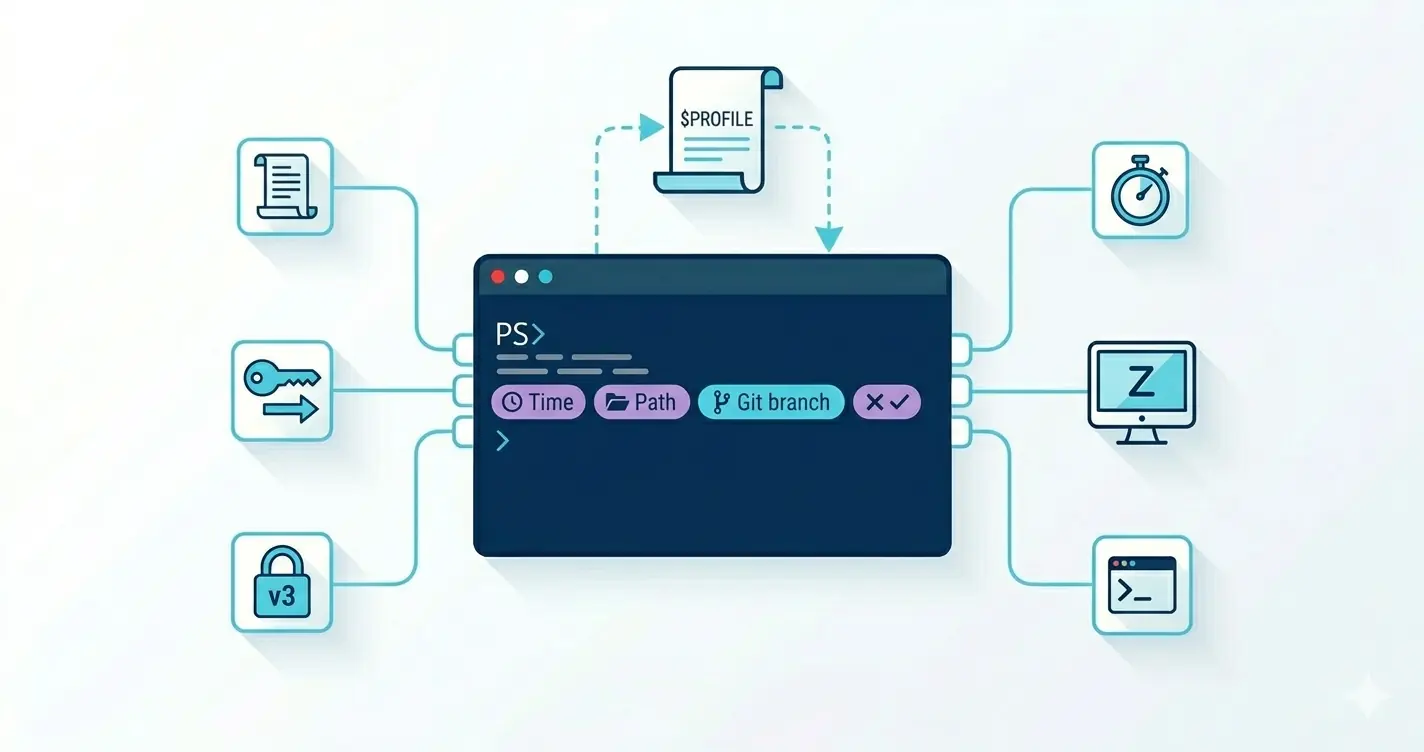
Drop that into your $PROFILE and:
- All your
Out-Filecalls write UTF-8 (instead of UTF-16, the historical default that ruined every cross-platform pipeline). Get-ChildItemincludes hidden files everywhere.- All HTTP calls have a sensible timeout.
- Every cmdlet treats non-terminating errors as terminating, so
try/catchactually catches them.
Use the wildcard form (
'*:ErrorAction' = 'Stop') sparingly. It changes the behavior of every script that runs in your session including ones you forgot you sourced. Some scripts genuinely depend on non-terminating errors continuing the pipeline.
A Real-World Example
Bring the pieces together. Here's an idempotent "create-or-update" wrapper around New-ADUser / Set-ADUser:
function Set-MyUser
{
    [CmdletBinding(SupportsShouldProcess)]
    param
    (
        [Parameter(Mandatory)]
        [string]
        $SamAccountName,

        [string]
        $GivenName,

        [string]
        $Surname,

        [string]
        $Department,

        [string]
        $Title,

        [string]
        $Manager
    )

    begin
    {
        Write-Verbose -Message '[Set-MyUser] Begin'
    }

    process
    {
        $existing = Get-ADUser -Filter "SamAccountName -eq '$SamAccountName'" -ErrorAction SilentlyContinue

        # Build only the parameters the caller actually provided
        $update = @{}
        foreach ($p in 'GivenName','Surname','Department','Title','Manager')
        {
            if ($PSBoundParameters.ContainsKey($p))
            {
                $update[$p] = $PSBoundParameters[$p]
            }
        }

        if ($existing)
        {
            if ($update.Count -gt 0 -and $PSCmdlet.ShouldProcess($SamAccountName, 'Update'))
            {
                Set-ADUser -Identity $SamAccountName @update
            }
        }
        else
        {
            $create = $update + @{
                Name           = "$GivenName $Surname"
                SamAccountName = $SamAccountName
                Enabled        = $true
            }
            if ($PSCmdlet.ShouldProcess($SamAccountName, 'Create'))
            {
                New-ADUser @create
            }
        }
    }

    end
    {
        Write-Verbose -Message '[Set-MyUser] End'
    }
}
The same hashtable does double duty splat into Set-ADUser for an update, merge with extra keys and splat into New-ADUser for a create. No giant if/else trees, no command lines wrapping off the screen, no surprise null parameters.
When Not to Splat
A few cases where straight named parameters are better:
- Two-or-three-parameter calls.
Get-Content -Path ./a.txt -Rawis more readable than building a hashtable for it. - Inside a tight pipeline where the cmdlet is genuinely a one-liner.
$x | Where-Object Status -eq 'Open' | Select-Object Nameis fine. - When you want named parameters to be visible in stack traces or audit logs. Splatted parameter names sometimes show as
<splatted>in transcripts.
The Habit
If a command runs more than half the line, splat it. If you're tempted to backtick a continuation, splat it. If you're calling the same cmdlet three times with slightly different parameters, build the hashtable once and mutate before each call.
What to Do Next
Splatting is one of those small features that quietly changes how readable every script you write becomes. Build the parameters as a hashtable, expand with @, conditionally add keys for optional parameters, forward @PSBoundParameters from wrappers, and keep $PSDefaultParameterValues in your profile for the boring defaults you'd otherwise repeat in every script.
Three concrete moves to lock the habit in this week:
- Grep your team's most-edited script for backtick line continuations (
`at end-of-line). Every one of them is a splat candidate; rewrite a single command and watch the diff get smaller. - Add three
$PSDefaultParameterValuesentries to your$PROFILEfor the cmdlets you call most. Save once, never repeat. - In the next wrapper function you write, forward
@PSBoundParametersinstead of re-declaring every parameter. The function shrinks by half and stops drifting from its inner cmdlet over time.
Pairs naturally with the advanced functions post (splatting becomes the default calling convention for any function with more than three parameters) and the hashtables vs PSCustomObject post (since splat targets are hashtables, picking the right container at construction matters).